

One complete product for daily inventory and emergency response
Every iCAM license includes every feature on this page. There are no editions, tiers or add-on modules.
Inventory & Tracking
Every supply and piece of equipment across all your facilities, down to the shelf it sits on.
- Supplies, equipment, consumables and durable assets in one system
- Serial numbers, lot numbers and expiration dates where they apply
- Expired stock highlighted automatically, and expiration dates updated in bulk
- Many facilities, each with nested storage locations: building, room, rack and shelf, as deep as you need
- Batch receiving: one item or a whole shipment at once, with packing lists and invoices attached
- Status, condition, owner, notes, documents and photos for each item
- Tracking dates for certifications, calibrations and inspections
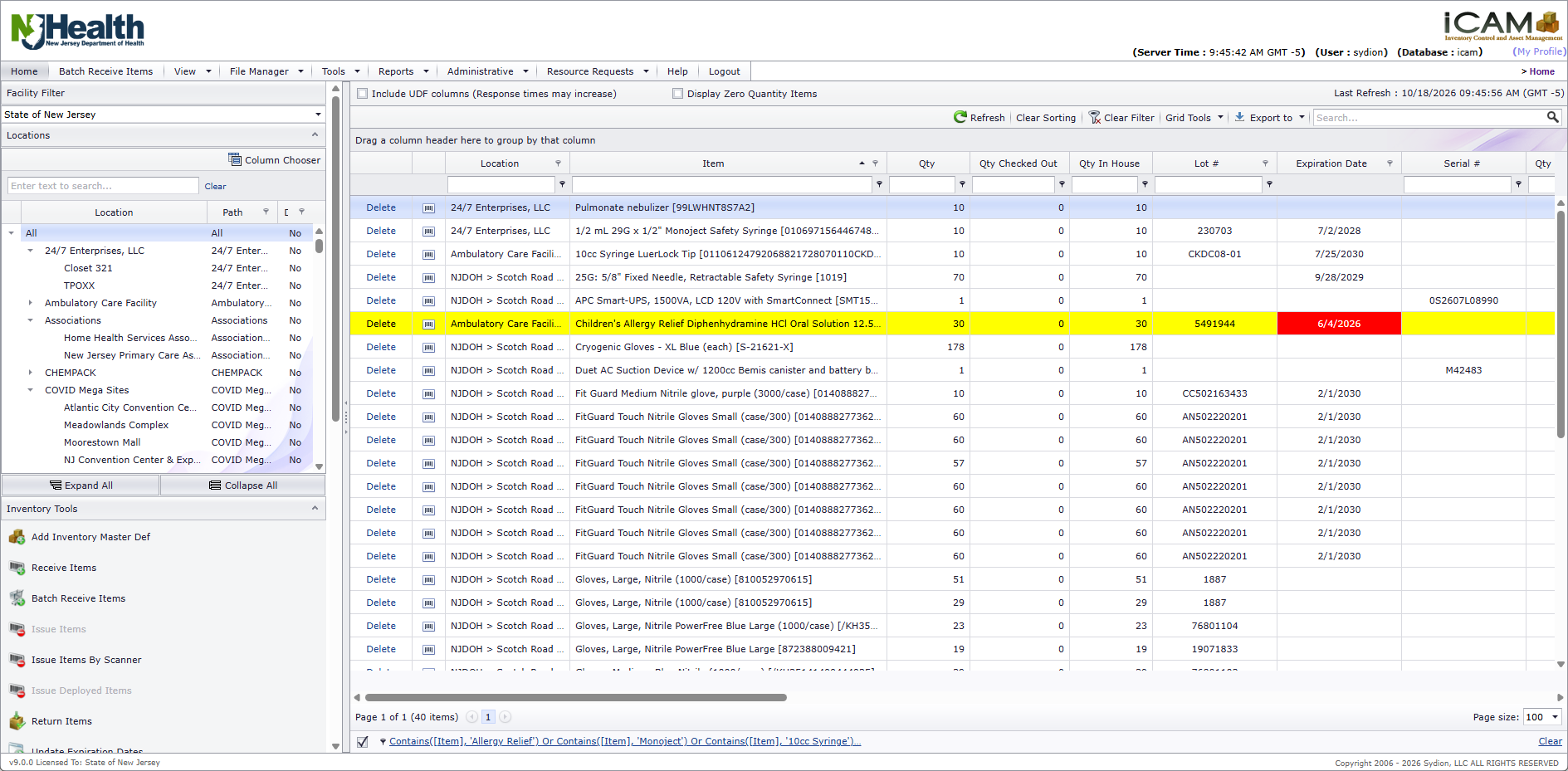
Daily Transactions
The everyday moves that keep your records current. Each one is logged.
- Issue, move, and transfer stock between facilities
- Check equipment out and back in when it is coming back (more below)
- Set stock aside for events and deployments, and record what comes back
- Return issued stock to inventory, make adjustments, and update status and condition
- Most transactions work three ways: full screen with a location tree, quick entry, or barcode scan
Check-Out / Check-In
Lend out equipment that is coming back, such as a cot for a shelter exercise, a suction unit for a clinic or a laptop for a new hire, and know who has it and when it is due. Supplies that are used up or given away are issued instead.
- Stays in your inventory. Checked-out equipment keeps its record and its location, but isn't counted as in-house stock, so nobody can issue, move or lend it again until it is checked back in.
- Three ways to check out. Several items from a location on one ticket, by barcode scanner (item label, serial number or asset tag), or one item straight from the inventory grid.
- Clear responsibility. Check out to people, teams or other agencies from your contact list, with an estimated return date and time.
- Partial returns. Check in all or part of a check-out, back where it came from or to a different location.
- Tickets for every hand-over. Each check-out and check-in prints a ticket with signature lines. Mark it for delivery or pickup, track it from pulling to delivered and received, and attach a signed copy.
- Overdue at a glance. The Checked-Out Inventory list shows everything that is out, with overdue return dates in red, plus reports of checked-out and past-due items.
- Overdue email. An optional email lists everything past its return date, as a spreadsheet for each facility, on the schedule your site sets.
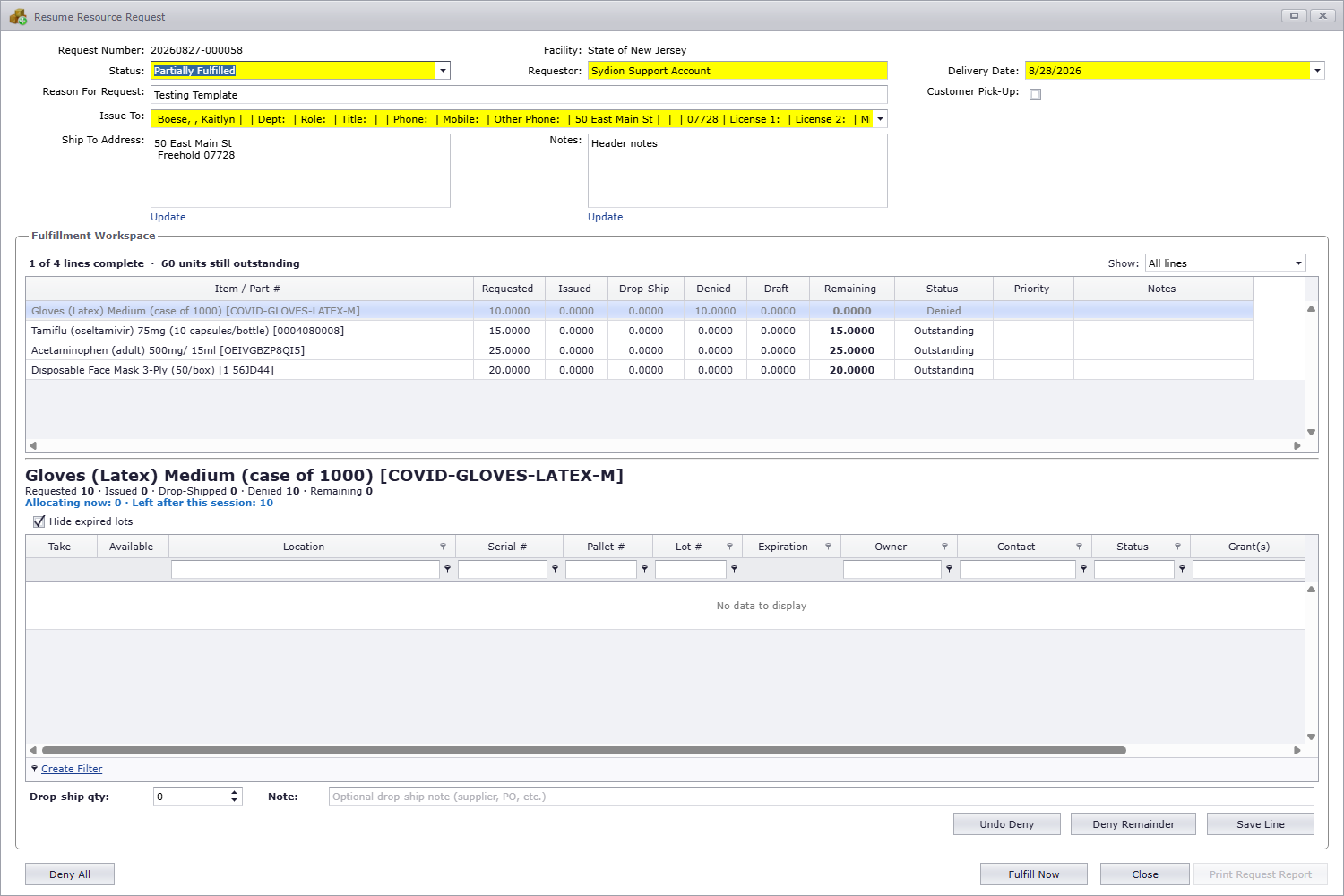
Resource Requests
Partner agencies and authorized users ask for what they need. You approve it, fulfill it and track it to delivery.
- Authorized users and partner agencies submit requests online for review and approval
- Fulfill line by line, in stages, or by drop-ship straight from the supplier to the requester
- Pick tickets, shipping, and receipt confirmation by the requester
- Email notifications when a request is created, fulfilled or denied
- Request templates for repeat orders
- Fully accountable from request to delivery
-
Request
Authorized users and partner agencies submit requests online.
-
Review
Requests are reviewed and approved or denied, line by line.
-
Fulfill
Pick and ship all at once or in stages, or drop-ship from the supplier.
-
Confirm
The requester confirms receipt, with email updates along the way.
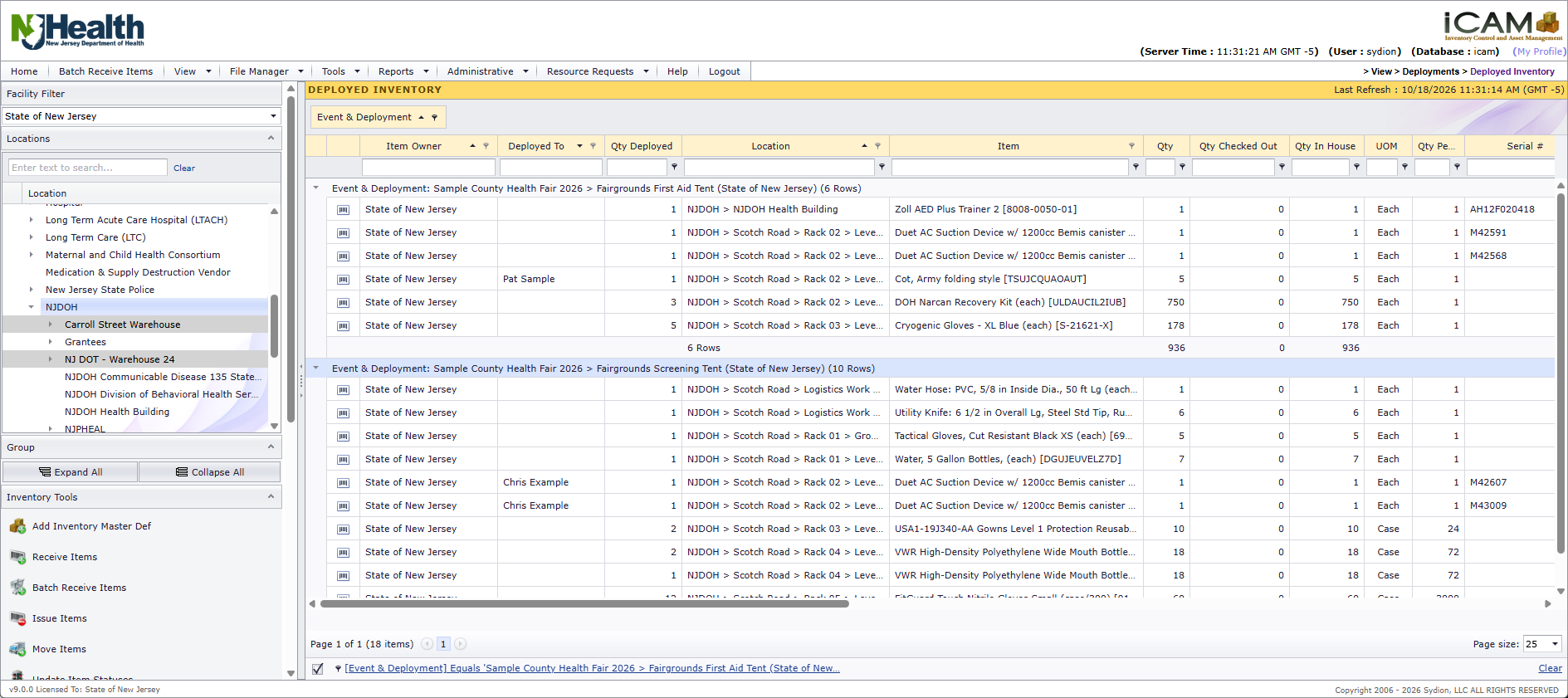
Events & Deployments
Set supplies aside for a shelter, clinic, exercise or incident, assign responsibility where it helps, and account for what is used and what comes back.
- Organize work by event, with one or more deployments under each: a county health fair, for example, with a first aid tent and a screening tent
- Deploy one item, or many items to several deployments and people on a single ticket
- Assign deployed lines to the person responsible where it helps, and set an optional estimated return date
- Deployed stock is reserved, not moved: it stays on its inventory record and at its location, but no longer counts as available for everyday issuing, moving or check-out
- See everything that is deployed in one place, the Deployed Inventory workspace, filtered by event or deployment
- Issue supplies from a deployment as they are handed out; move deployed stock or transfer it to another facility, and it stays with the same deployment
- Return unused quantities, all at once or in part, back to everyday inventory
- Printable deployment and return tickets with signature lines for pickup and receipt; signed copies can be scanned and attached
- A searchable history of every deploy, issue, move and return, exportable to PDF, Excel and CSV
-
Set up
Create an event, such as a shelter or a clinic, with one or more deployments under it.
-
Deploy
Set stock aside for a deployment and, where needed, assign it to the person responsible.
-
Use
Issue supplies from the deployment, or move or transfer it, as the work goes on.
-
Return
Release what is left back to everyday inventory, on a return ticket.
How these features differ
Each of these works on its own. They aren't stages you have to go through in order; use the ones that fit the way your program works.
| Feature | Use it when | What happens to the stock |
|---|---|---|
| Everyday inventory | You receive, store, issue and move supplies day to day. | Records update as items are received, moved, issued and returned. |
| Check-out / check-in | You lend equipment that is coming back. | It stays in your inventory and at its location, but isn't counted as in house until it's checked in. |
| Resource requests | Users or partner agencies ask for supplies they need. | Approved lines are fulfilled to the requester: picked and shipped, or drop-shipped. |
| Emergency Provisioning | You want to know how long your supplies will last. | Nothing changes. It's a planning view, projected from daily use. |
| Events & deployments | You set supplies aside for a shelter, clinic, exercise or incident. | Stock is reserved for the deployment, and can be assigned to a person, without being moved, until it is issued or returned. |
Scanning & Labels
Less typing and fewer errors in daily work.
- Barcode and QR labels for items, locations and pallets
- Printable QR placards for storage locations
- Scan to issue, move, check out, check in and log maintenance
- Works with Bluetooth and wireless scanners
Planning & Readiness
Know how long your supplies will last before you need them.
- Emergency Provisioning shows days of supply at normal and at peak demand
- Plan reorders to reach a target number of days of coverage
- Scheduled email reports, delivered as spreadsheets at the time and on the days you choose
- Six report types: Inventory Summary, Expired Inventory, Below Reorder Level, Overdue Checked-Out, Scheduled Maintenance and Tracking Dates

Maintenance & Asset Readiness
Keep suction units, ventilators, refrigerators and other critical equipment serviced, documented and ready when it is needed.
- For serialized equipment. Each piece keeps its own maintenance history. Supplies counted by quantity don’t carry maintenance records.
- Complete service records. The date, what was done, who did it and what it cost, with an optional service report or invoice attached.
- Many items at once. Scan or pick the items, and each gets its own record of the same work.
- Due dates you set. Enter the next maintenance date on each record. The inventory grid shows it green while it is ahead and yellow once it is due.
- History that travels. Records and due dates go with the equipment when it is moved, transferred to another facility, or has its status or condition updated.
- Overdue at a glance. A Past Due Maintenance list, with maintenance recorded straight from it, and an optional email of past-due and coming-due items for each facility.
- Reports. Next Maintenance Aging, Past Due Maintenance and maintenance transaction history.
- Paper logs welcome. Enter older work without disturbing the current due date.
Accountability
What you bought, where it went and what happened to it.
- Full history of every issue, move, transfer and return
- Grant-funded purchases tracked against their grants, with remaining balances
- Equipment deployed to staff and partner agencies
- Deployment and return tickets for every event, with optional signed copies attached
Administration & Security
Web-based and multi-agency, with each agency and facility seeing what it should.
- Web-based, with nothing to install on workstations
- Role-based permissions by facility and agency, with role templates
- Single sign-on, and two-factor sign-in by emailed code
- Agency and facility data kept separate
- Import existing inventory and locations from spreadsheets
- Reports with filters; export to PDF, Excel and CSV
- A built-in Help page with more than 25 user manuals
Integration & Connectivity
Connect iCAM to your other systems through its API.
- Read inventory, location and transaction data
- Create resource requests and track their progress
See iCAM in action. Request a demo.
A live walkthrough of iCAM, shaped around how your agency stores, requests and deploys supplies.
Or call (512) 771-1157 or email jjohnson@sydion.net